

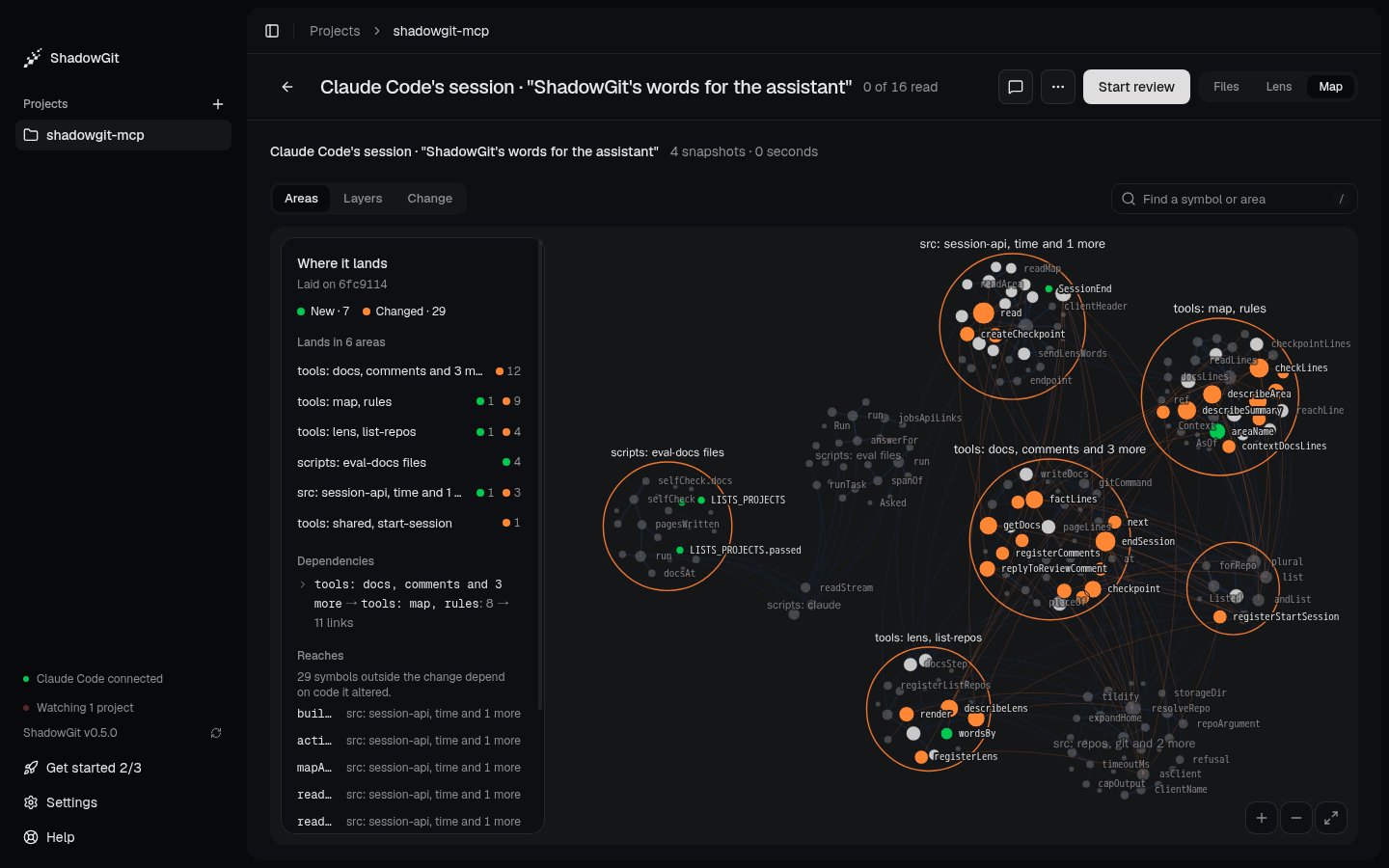
Where Claude Code's session lands in the ShadowGit MCP server: new code in green, changed code in orange
The whole project
Select a project and click Project at the top right, or pressG then P. The first time, ShadowGit draws the map of the newest snapshot (“Drawing the map…”). After that, the Map opens straight away on the map ShadowGit kept, and catches up from there.
- Areas, the default, groups the code by area.
- Layers groups it by where the code runs, or else by package or folder.
/. Test files, and folders such as fixtures and e2e, stay off the map. Rules, there once the project has a .shadowgit-rules, opens your rules as ShadowGit reads them. Click an area, and its card shows the summary of its docs page, with Read its page. Docs, at the top, opens every page beside the map.
Where a change lands
In Review, click Map, or pressG then M, and the map lights the change you’re reading. From the Lens, Where it lands opens it too.
The card’s title becomes Where it lands. It counts the new and changed pieces and lists the areas the change lands in. Under Your rules, it lists the links the change adds that one of your rules names. Under Dependencies, it lists what the change makes depend on what, the same lines as the Lens. Under Reaches, it names the code outside the change that depends on code it altered.
The map draws each dependency between its two areas: a new one in green, a gone one dashed, and two areas that now depend on each other with a line each way. On a map drawn after the change that split or renamed one of the two areas, the line is listed on the card but not drawn. Dependencies need ShadowGit 0.3.11 or later.
An area with a code change is outlined in orange, and one whose changes are only comments or spacing in grey. So a change that only rewords comments looks different at a glance from one that changes what the code does.
Change, the third button beside Areas and Layers here, sets the changed code apart from the code that depends on it and from the rest of the project.
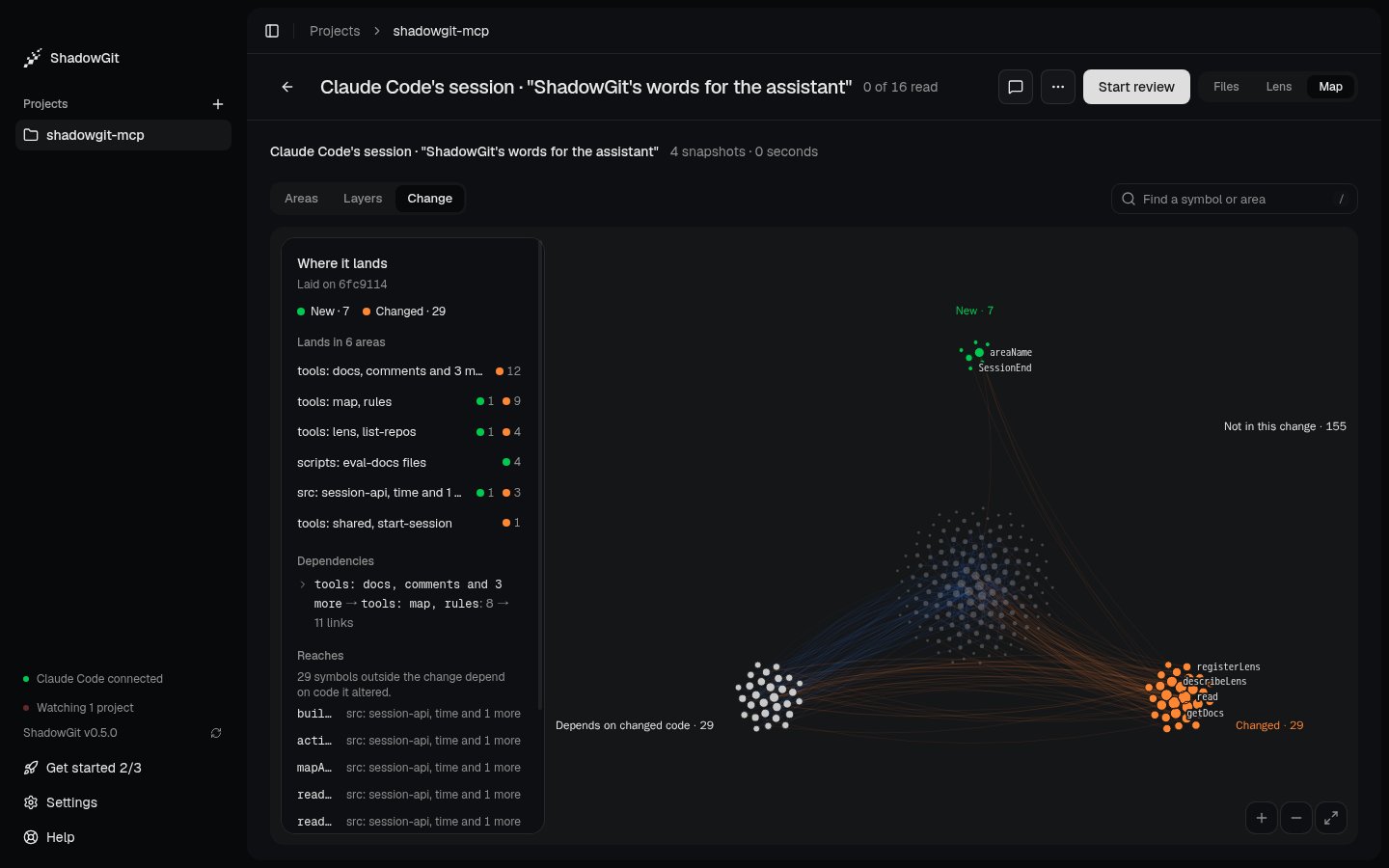
Change sets the new and changed code apart from what depends on it
Keeping up with your snapshots
When new snapshots land, Newer snapshots: update appears at the top. Clicking it draws the newest snapshot, and in Review moves the change up to it. In a small project, where drawing the map takes under 3 seconds, the map redraws itself after each new snapshot while ShadowGit’s window is open. Only the change you’re reading waits for the click. A map kept from before an update names the slices of big folders the way the older version did until the next snapshot is drawn. Docs pages stay with their areas either way.Your assistant reads it too
Through the ShadowGit MCP server, your AI assistant reads the same map: how the project is organised, and what depends on the code it’s about to change. It looks before it edits, on its own, and you can ask it too (see Your project’s architecture). Its answers come from the map you see here, name each area as you see it and by an id that stays while the name follows what it holds, and say how many snapshots behind the newest the map is. This needs ShadowGit 0.3.10 or later. Area ids need ShadowGit 0.5.0 or later and version 2.9.0 or later of the MCP server.Where the map is kept
ShadowGit draws the map on your computer and keeps it in its data folder (see Where ShadowGit keeps its data), undermaps. It holds the names of your functions, classes and types and the paths of their files, and ShadowGit uploads none of it. What your assistant reads from it goes to your AI provider, like any file the assistant opens. Removing a project deletes its map.
Troubleshooting
When the Map can’t draw, it says “Couldn’t draw the map” and why. It has the Lens’s limits. A snapshot of more than 20,000 files or 64 MB of source code is too large, and drawing stops after 120 seconds. Leaving generated code and copied-in dependencies out with.shadowgit-ignore usually brings a project under them (see Leave files out).
If showing where a change lands fails, the Map says “Couldn’t light these snapshots” and why.